

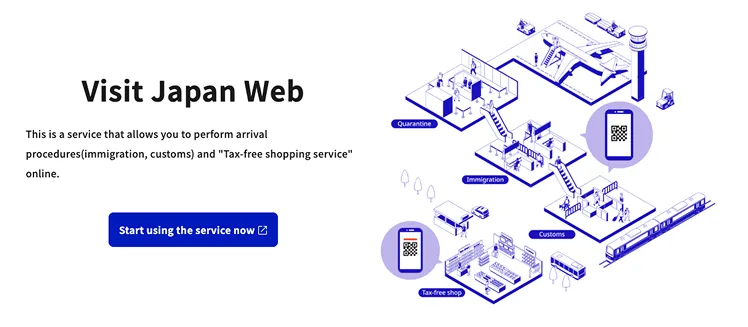
The Japanese Government operates the Visit Japan Web as a digital solution for a quicker immigration procedure for travelers. The website is considered a necessity for all travelers who are visiting Japan in 2025. The interesting feature of this website is that you don’t have to fill out the paper immigration forms; rather, you scan a QR code for a quicker immigration procedure. This service does not just stop with immigration, but also supports duty-free shopping, making it popular among many users worldwide. Shall we explore Visit Japan Web along with ESIMJAPAN.com?
Advantages of Using Visit Japan Web
- Quicker immigration procedure: No requirement to fill out a paper immigration form.
- Integrated services: Immigration screening, customs declaration, and duty-free services are available in one place.
- Register family members: Register up to 10 family members on a single account.
- Offline Functionality: Most functions of Visit Japan Web can be used offline after logging in online in advance; however, new registrations, editing family member details, and password changes require an internet connection. Once registered online, plans and QR codes can be accessed offline until expiration.
Key Information Summary
| Category | Content |
|---|---|
| Name of Service | Visit Japan Web |
| Operating Agency | Japan Digital Agency |
| Cost | Free of charge |
| Required status | Recommended (replaces paper declaration) |
| Number of registrations per account | Maximum of 10 people per account |
| Languages | English, Korean, Japanese, Chinese (simplified and traditional), and Vietnamese |
| Eligible airports | 12 main airports (Haneda, Narita, Kansai, etc.) |
| Official Website | https://services.digital.go.jp/en/visit-japan-web/ |
Pre-Registration Requirements
Primary essentials
- Smartphone (To scan passport and show QR code)
- Original passport (must be valid for at least 6 months)
- Flight ticket (flight info: number and arrival time)
- Information on stay (address, phone number, and business registration number)
- Email address (verified email address)
STEP 1. Visit Japan Web: Account Creation and Login
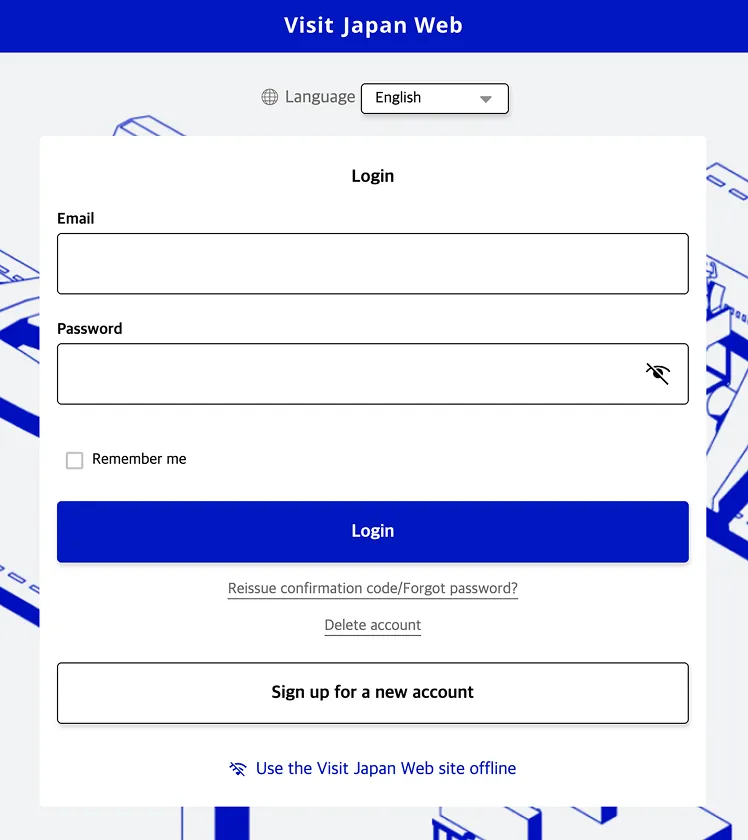
Account creation
Access the official website
- Visit the official website.
- Change the language settings to “English”.
Create a new account
- Click “Sign up for a new account”.
- Proceed after agreeing to the terms and conditions.
Enter the required information
- Email address: Please provide an email address that can receive authentication codes.
- Password: Create a password with the English alphabet (UPPERCASE, lowercase, numbers, and special characters)
Email Verification
- Type the certification code sent to your registered email address.
- After successful verification, log in to your account.
Caution:
- Your verified email ID is used as your login ID, so enter it carefully
- Create a strong and secure password
STEP 2. User Registration on Visit Japan Web
Select Entry/Return category
User registration will start when you select “your details” from the Visit Japan Web page.
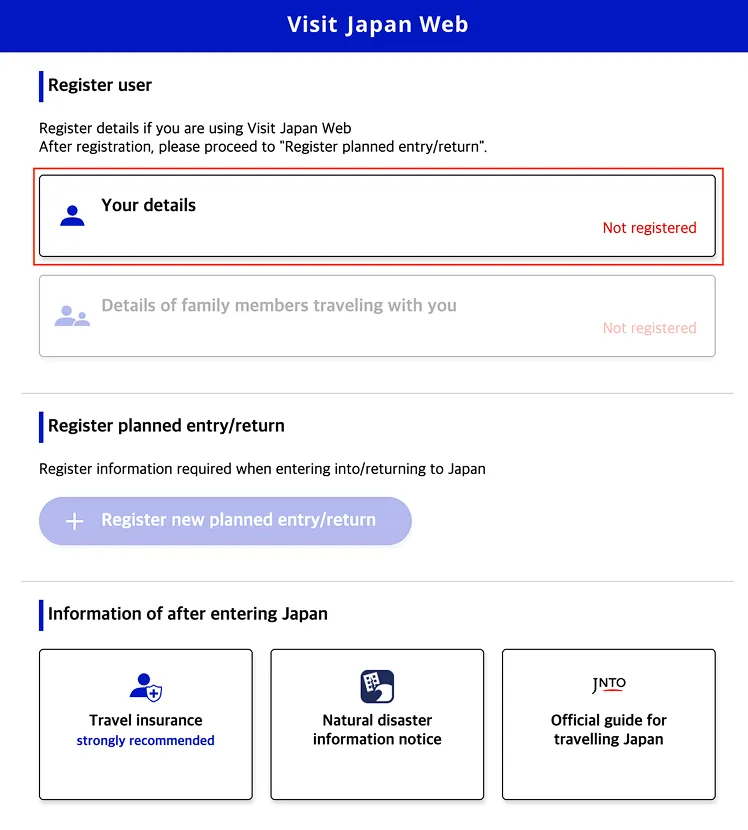
Entry/return procedure category
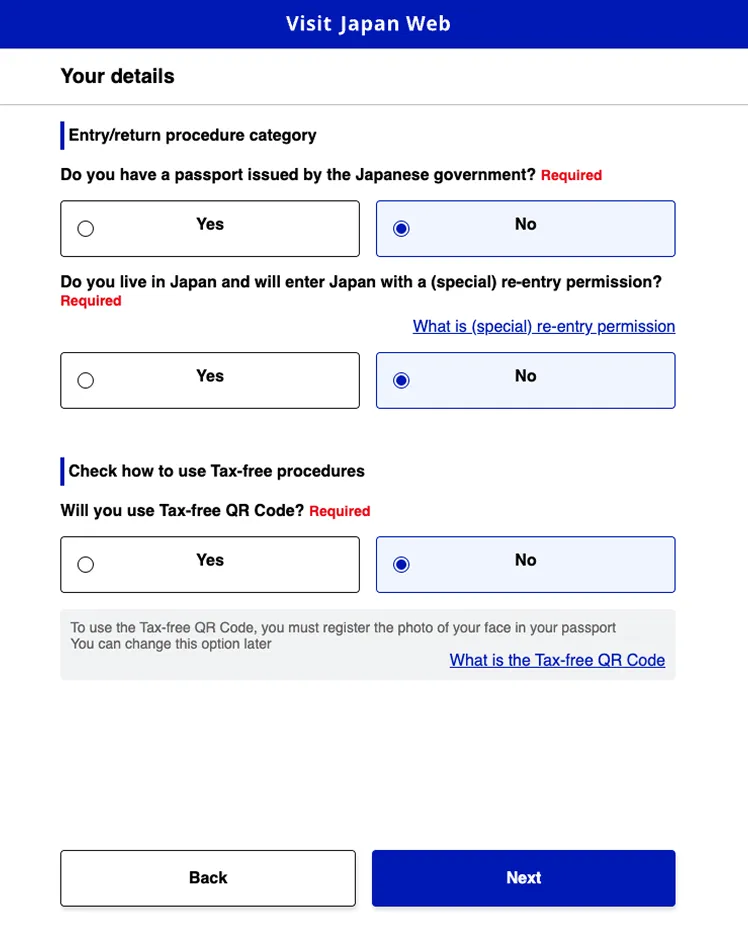
| Questions | Suggested reply for a Traveler |
|---|---|
| Do you have a passport issued by the Japanese Government? | No |
| Do you live in Japan and will enter Japan with a (special) re-entry permission? | No |
| Will you use a tax-free QR code? | yes/no |
Things to be cautious about while registering for tax-free
- If you want to register for tax-free, select “yes”
- Take a picture of your passport and upload (can use smartphone camera)
Register passport information (camera scan/enter manually)
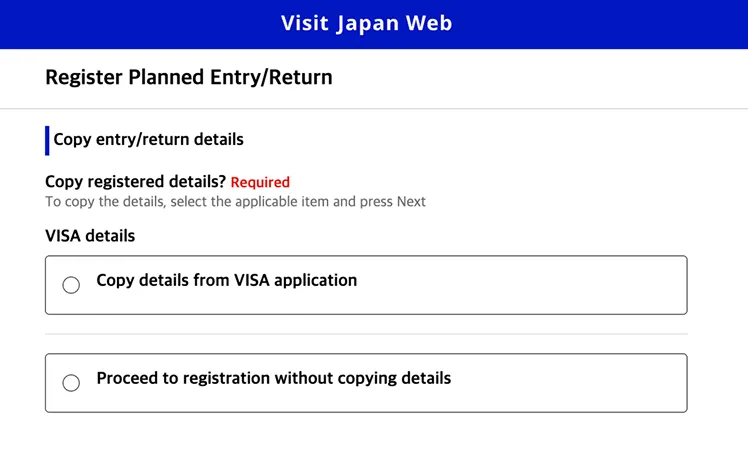
Method A. Scan with a camera (recommended)
- Select the “scan with camera” option
- Give access to the use of your smartphone camera
- Place your passport information in front of the camera
- Check if the information is correct and proceed
Method B. Enter information yourself
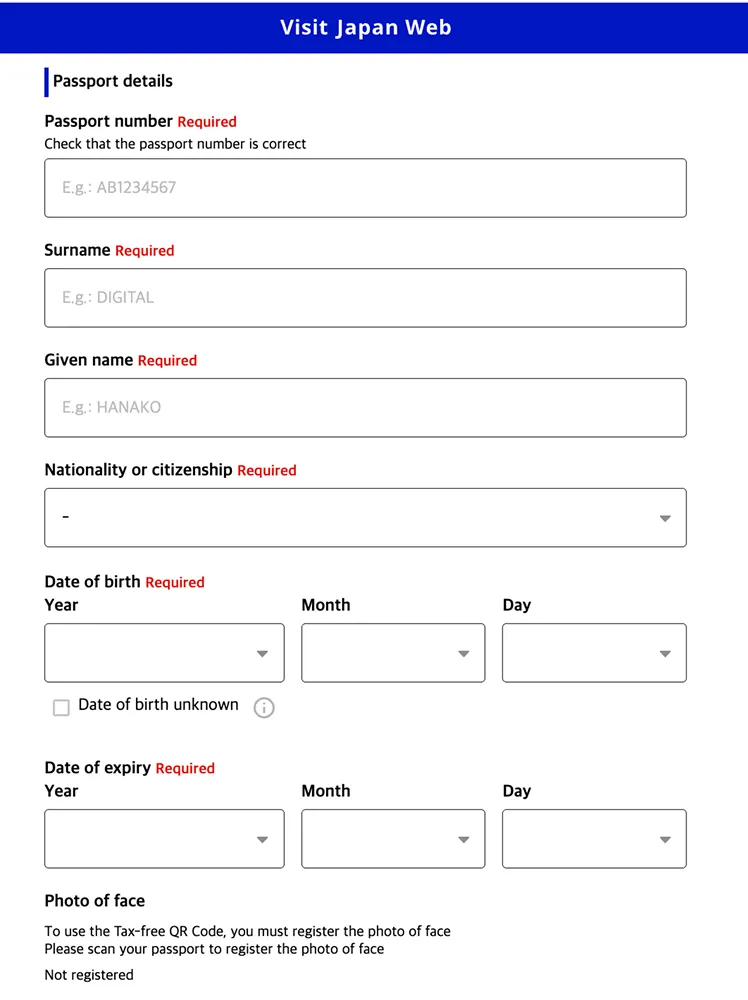
Based on the order of information, enter the details:
- Passport number
- Surname as per passport
- Given name as per passport
- Nationality
- Date of birth
- Date of passport expiry
Tips
- Using a camera scan on a smartphone is quicker and more precise
- Enter passport details exactly as they appear on your passport
- English names can be either upper case or lower case
Enter basic information (Optional)
Occupation Information:
- From the drop-down menu, select the occupation
- If the exact occupation is not available, choose a closely related one from the list
Home Address information:
- Country: E.g., United States of America (in English)
- City: Write in English (New York)
STEP 3. Visit Japan Web Registration for Entry and Departure Details
Method A: New registration (proceed without citation)
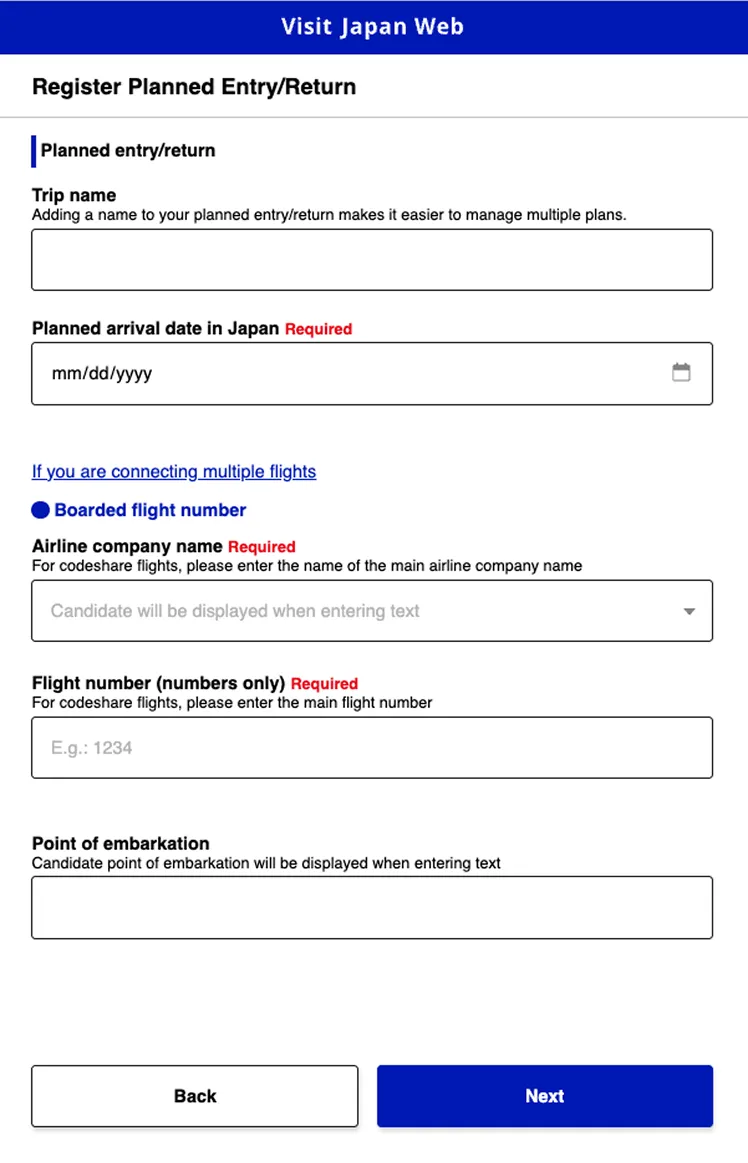
From the homepage, select “expected Entry/Leave registration” —> New registration
Enter the flight information:
| Information | Example | Methods to verify |
|---|---|---|
| Trip name | Japan trip 2025 | Not applicable |
| Date of arrival | 2025-03-15 | From E-ticket |
| Airlines name | Asiana Airlines | From E-ticket |
| Flight number | OZ103 | From E-ticket |
| Arrival from | Incheon Airport | From E-ticket |
Return information:
- Departure date: The Day you will leave Japan
- Departure flight number: Return flight number
Method B: Copy from existing entry/return records
Details from past travel records:
- If you have already updated all the information
- Choose “from existing information”
- Can be reused after revising existing information
Method C: Citation from visa application information
For long-term residents only:
- Applicable only for visa holders, such as students or workers
- Not applicable for tourists
Enter the Address in Japan (accommodation)
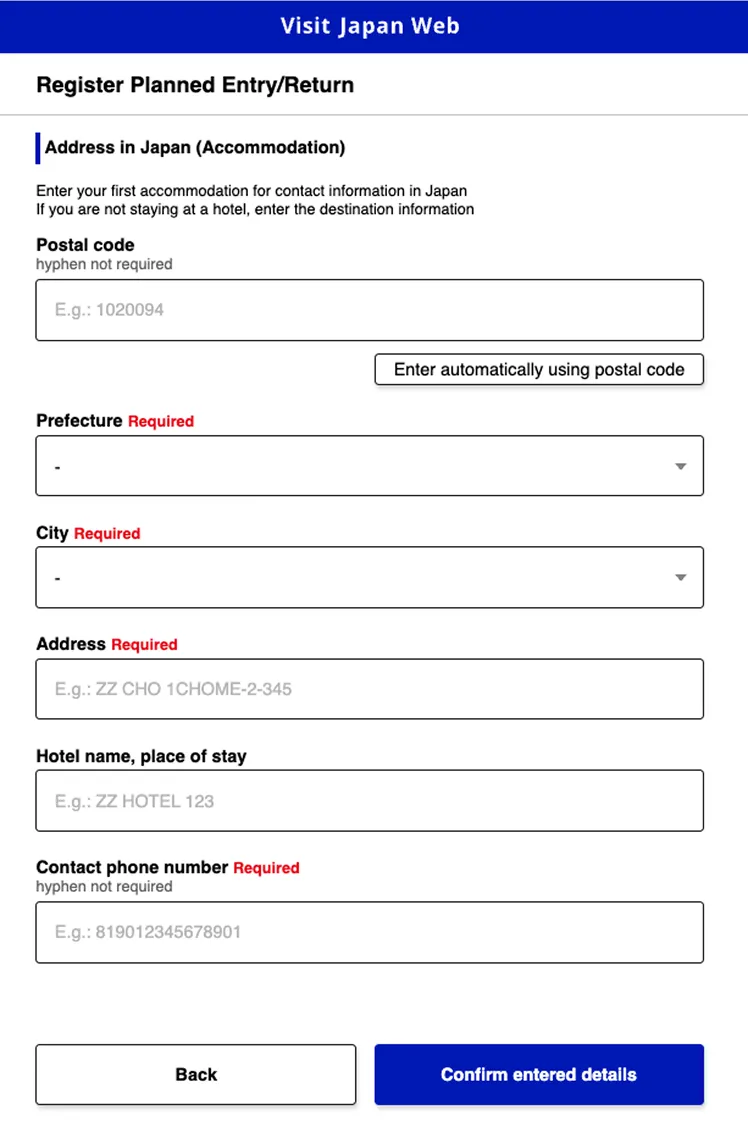
Enter the hotel details:
Automatically enter your accommodation address in Japan by using the postal code feature for faster and more accurate input.
| Necessary information | Example |
|---|---|
| Hotel Name | Tokyo Station Hotel |
| Address | 1-9-1 Marunouchi, Chiyoda-ku, Tokyo |
| Contact no | +81-3-5220-1111 |
Caution
- Enter the hotel details only in English
- Enter the first hotel you are staying at
- Write the address of the hotel from the hotel reservation site
STEP 4. Enter Immigration/Return Procedures on the Visit Japan Web
Click the registered schedule to fill in the “Immigration Inspection and Customs Declaration” information.
Quarantine (Health Checkup)
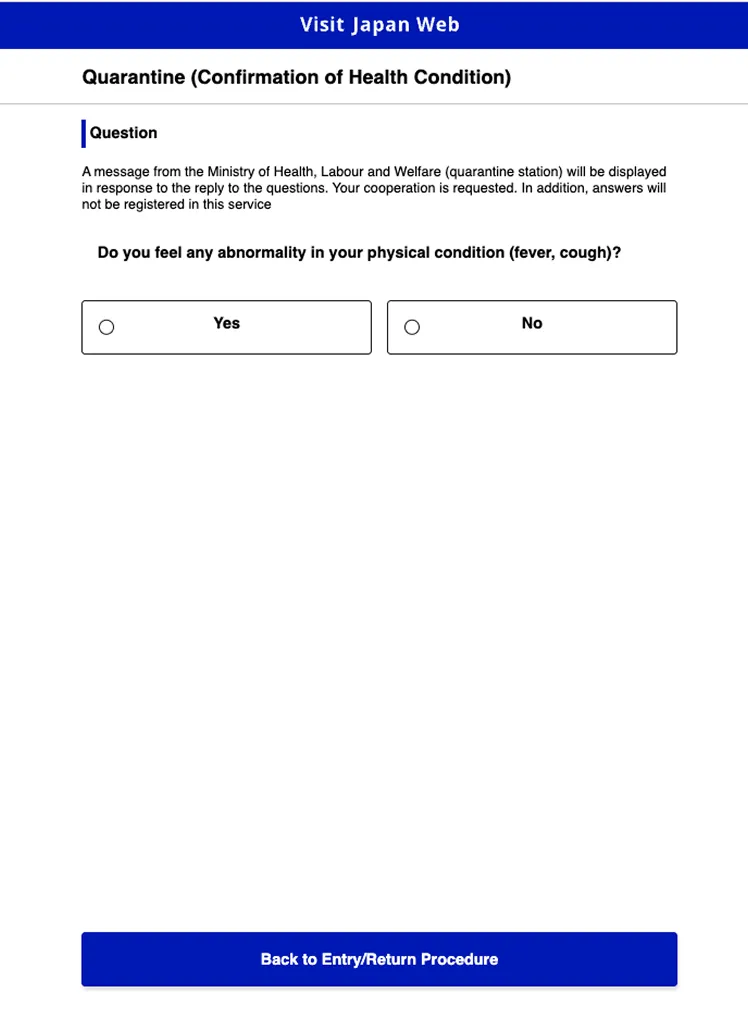
Quarantine Procedures as of 2025:
- COVID-19 quarantine procedures have been significantly simplified
- No need for vaccination certificates or negative PCR test results
- If no health issues, select ‘NO‘
Immigration & Customs Declaration
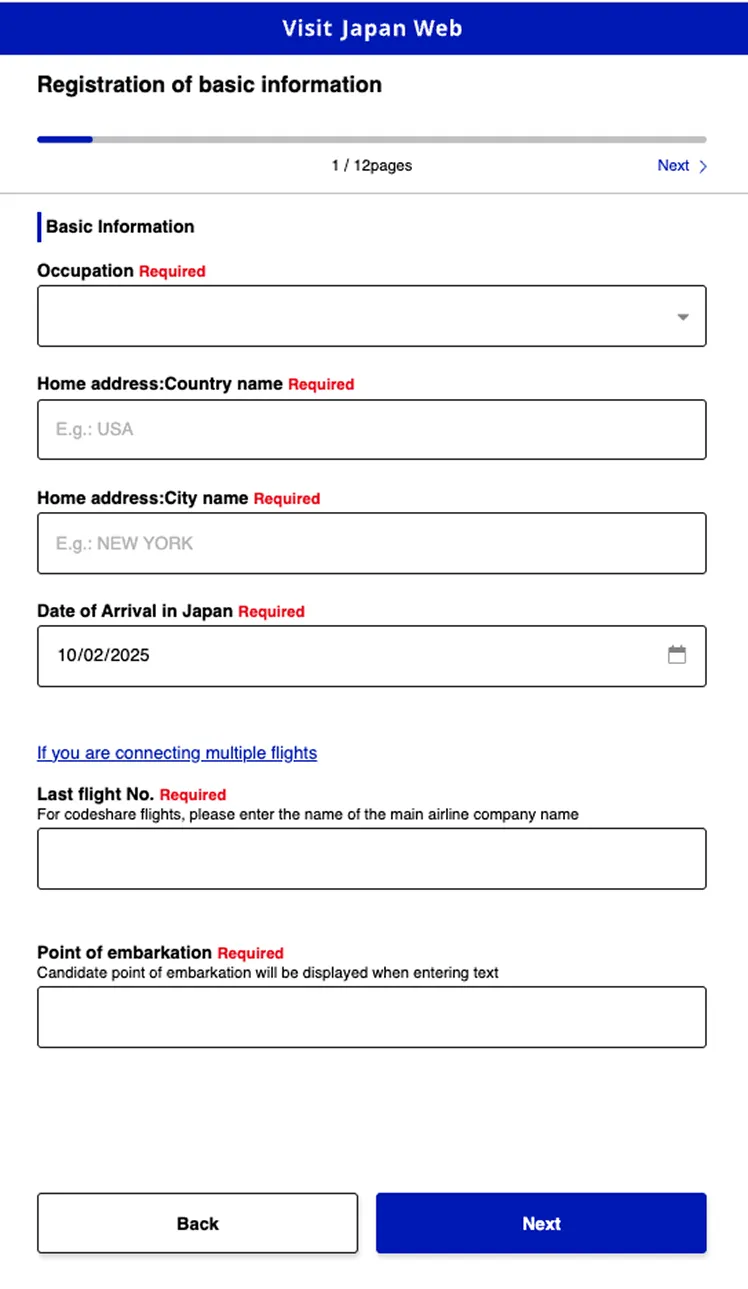
Immigration Information (Pages 1-4):
Pages 1-2: Basic Information Verification
- Information from previous steps was automatically populated
- Review the content and proceed to the next step
Page 3: Travel Purpose and Itinerary
- Entry purpose: Select Tourism
- Planned length of stay: Enter actual number of travel days
Page 4: Things to check regarding entry
| Question | Suggested responses for tourists |
|---|---|
| Have you ever been deported? | No |
| Do you have a criminal record? | No |
| Do you have a history related to drugs? | No |
| Do you have a history related to prostitution? | No |
Customs Declaration Information (Pages 5-12):
Items subject to declaration:
| Item Category | Declaration criteria |
|---|---|
| Cash/Travel Cheque | 6,750 USD |
| Liquor | More than 3 bottles |
| Cigarette | Over the legal limit |
| Perfumes | Over 2oz |
| Gold goods | All gold items, including those being worn |
| Other duty-free limits exceeded | Over $1,300 |
Cautions related to Gold goods:
- Japan is very strict about gold smuggling
- Gold rings and necklaces being worn are also subject to declaration
- Legal sanctions are possible if not declared
- For safety, it is recommended not to wear gold items
Confirm Entered Details
Final Confirmation and Registration:
- Review all entered information
- If incorrect content is found, use the ‘Edit‘ button to make corrections
- Check ‘The above content is true and accurate‘
- Click the ‘Register‘ button
Registration Completion Confirmation:
- Immigration inspection and customs declaration status changes to ‘Registered‘
- ‘Show QR Code‘ button is activated
Complete Your Japan Travel Preparation
So far, we have explored how to register for the Visit Japan Web, which is required when traveling to Japan. Also, make sure to pack all your essentials for your trip to Japan. Instead of a roaming or a physical SIM card, if you prepare an eSIM from ESIMJAPAN.com, you can enjoy high-speed internet during your trip in Japan. Prepare for a comfortable and enjoyable stay in Japan with ESIMJAPAN.com.


Leave a Reply